⏰ Analog Nomad User Guide
Complete Tutorial for Time, Task & Revenue Management
Version 1.0.0.0 ← Back to Main Page🌐 First Use — Setting Up Analog Nomad
-
Right-click on the clock face to access the top-level menu.
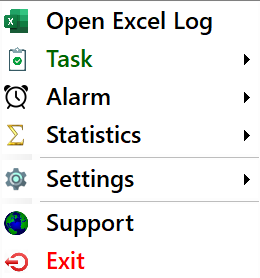 If your primary language is not US English, you may want to set it to the one use daily.
-
Right-click the clock face, select Settings > Culture / Language > Set. A dropdown appears from
which you may select your language of choice from 28 languages and their many variants (306 in total).
 Available languages are shown in a light green background. Choose one in the green and click or tap the
Set button. Skip this step if you plan to work in English, unless you live in a non-English speaking
country, i.e.: Austria or Belgium. Your language will still be English but your money
units will be Euros and cents, in Hungary forints, in Poland zlotys and grosz, in Switzerland Swiss francs,
and so on. If you choose a language other than English, texts in menus, dialog boxes, graphs, and the Excel
log file will be shown in that language.
Available languages are shown in a light green background. Choose one in the green and click or tap the
Set button. Skip this step if you plan to work in English, unless you live in a non-English speaking
country, i.e.: Austria or Belgium. Your language will still be English but your money
units will be Euros and cents, in Hungary forints, in Poland zlotys and grosz, in Switzerland Swiss francs,
and so on. If you choose a language other than English, texts in menus, dialog boxes, graphs, and the Excel
log file will be shown in that language.
- Currency, date and time formats will also change to those used in the selected language's country.
- I use the English language (Europe) option because I live in Hungary, and I am used to European date and time formats. If that option is chosen, the currency will be set to HUF (Hungarian forints).
-
Right-click the clock face, select Settings > Culture / Language > Set. A dropdown appears from
which you may select your language of choice from 28 languages and their many variants (306 in total).
-
The time zone will automatically be set to your device's time zone.
- You can change time zone and/or give your clock a name, e.g.: Zürich, or Lucerne (if you live in Switzerland). Settings > Time Zones / Clock Name > Set.
- Multiple clocks can be displayed on the desktop (e.g.: for different time zones). Each clock can be positioned anywhere on the desktop by dragging it.
-
Setting the clock size and display location.
- The size of the clock can be adjusted by scrolling (e.g.: using the mouse wheel). Fine adjustments can be made in Settings > Set Size > Set. The minimum size is 100 pixels in diameter, the maximum size depends on your primary display size and resolution.
- The clock can be positioned anywhere on the desktop by dragging it with the mouse.
-
Settings the numerals font style.
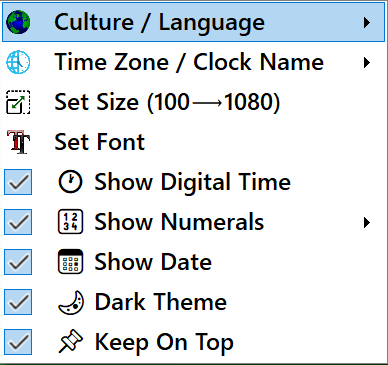
- Right-click the clock face, select Settings > Set Font and choose the font face and size.
- The clock's numerals can be shown in European, Roman, Arabic, or Kanji styles or can be hidden altogether. See Settings > Show Numerals.
-
Showing or hiding the clock's elements.
- Elements of the clock that can be shown or hidden. See under Settings: Show Digital Time, Show Numerals, and Show Date.
- Under Settings, the Show Numerals submenus also allow you to choose the numeral style: European, Roman, Arabic, or Kanji. The default is European, e.g.: 1, 2, 3, ...
-
Setting dark or light theme.
- The default theme for the clock is the same as your Windows theme setting (dark or light).
- You can override the default setting in Settings > Dark Theme checkbox (turn it on or off).
-
Keep the clock on top of all other windows.
- To keep the clock always visible on top of all other windows (default state), enable the Settings > Keep on Top option.
- To disable this feature, simply uncheck the Settings > Keep on Top option.
- The Clock always remembers the state of its settings, even after you close it and/or log out of Windows. When you restart it, all settings will be restored to their previous state, including its position on the desktop.
- When you first start using Analog Nomad, there will be no tasks or sessions logged, so no statistics will be available. As you create tasks and log sessions, the statistics will start to populate. Moreover, regularly held sessions will auto-populate the Task > Set Task form with previously used task details for quick selection. Analog Nomad uses machine learning to identify the most likely recent session to enhance your productivity experience.
🌐 Logging Tasks/Sessions
- To log a task/session, right-click the clock face and select Task > Set Task. At first use, Analog Nomad will create an Excel workbook named AnalogNomad_Log.xlsx in your %APPDATA%\AnalogNomad\ folder as %APPDATA%\AnalogNomad\AnalogNomad Log.xlsx file to store task/session data. You can view and edit this file using Microsoft Excel or any compatible spreadsheet application. It can be easily opened from within Analog Nomad by selecting Open Excel Log menu.
- As more tasks/sessions are logged, monthly worksheets will be created automatically within the workbook to organize the data by month for easy reporting and further analysis. Each worksheet will contain detailed information about the tasks/sessions logged during that month.
-
Logging a New Task/Session:
-
Right-click the clock face and select Task > Set Task.
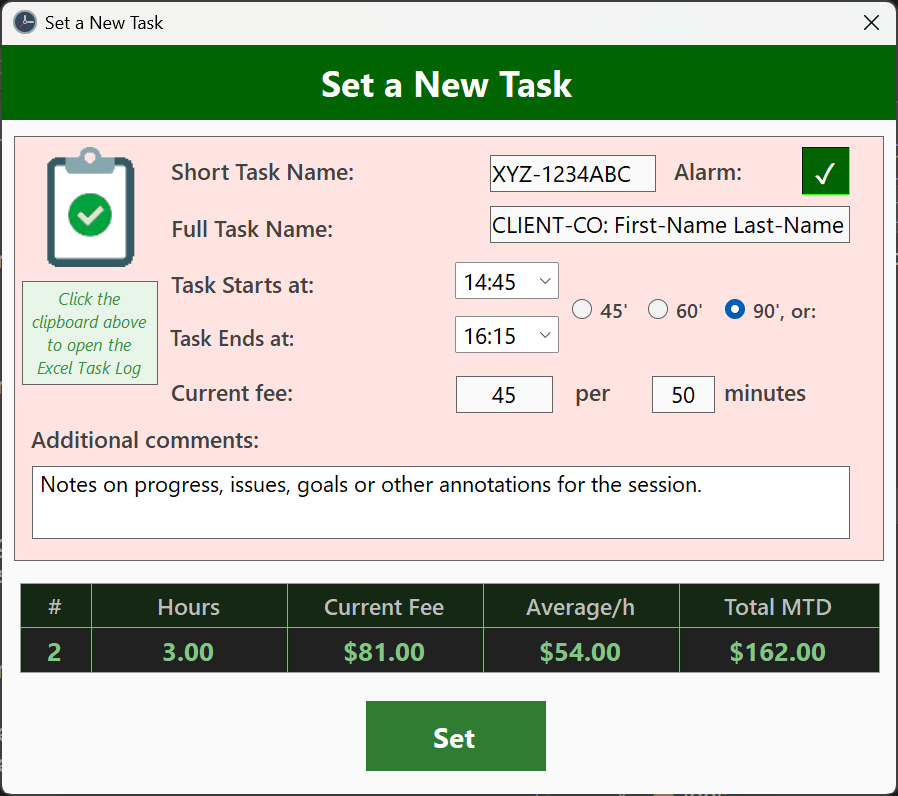 The Short Task Name
field is mandatory. It is often called Charge Code in larger organizations, but its content is up to you.
The Long Task Name is also required. It provides additional information about the client that might not
be in the Short Task Name. The Task Start and End times must be in h:mm format. You can also select one
of the radio buttons for 45-, 60-, or 90-minute sessions, and the Task End time will be automatically
calculated. The Current Fee and rate period (per) must be whole numbers. For example, Current Fee of 60
and rate period (per) of 30 would mean $60 per 30 minutes and if the session is one hour long, then the
calculated fee would be $120. You can also provide an optional detailed description of the task under
Additional Comments.
The Short Task Name
field is mandatory. It is often called Charge Code in larger organizations, but its content is up to you.
The Long Task Name is also required. It provides additional information about the client that might not
be in the Short Task Name. The Task Start and End times must be in h:mm format. You can also select one
of the radio buttons for 45-, 60-, or 90-minute sessions, and the Task End time will be automatically
calculated. The Current Fee and rate period (per) must be whole numbers. For example, Current Fee of 60
and rate period (per) of 30 would mean $60 per 30 minutes and if the session is one hour long, then the
calculated fee would be $120. You can also provide an optional detailed description of the task under
Additional Comments.
-
Right-click the clock face and select Task > Set Task.
-
Using the log file:
- You may extend the functionality of the log file by adding your own formulas, charts, and pivot tables to analyze. You can also use Excel's built-in features to filter, sort, and visualize your task/session data. DO NOT INSERT OR DELETE COLUMNS OR ROWS IN THE LOG FILE, as this may corrupt the data structure used by Analog Nomad. You may use columns to the right of the existing data (columns K:nn) for your own calculations and analysis. You can add new worsheets for your own use, but do not modify or delete the existing worksheets created by Analog Nomad. Of course, you can edit erroneous data entries, but be cautious not to alter the structure of the log file and be sure that data entered follows the correct formats.
- I know that such data is important to you. Therefore, I highly recommend that you back up the log file regularly (daily!) to prevent data loss. You can use cloud storage services like OneDrive, Google Drive, or Dropbox. I use Windows Task Scheduler to back up the log file nightly at 1 AM with a PowerShell script to my private cloud storage.
-
Built-in Analytics:
- As you log more tasks/sessions, Analog Nomad will automatically generate visual analytics to help you track your productivity. You can access these analytics by right-clicking the clock face and selecting Statistics > Visual. The available charts include bar charts, line charts, and pie charts that provide insights into your time usage and revenue generation.
- You can export these charts as .png files for easy sharing and reporting. Simply click the export button within the analytics view to save the chart to your desired location.
- Analog Nomad also provides month-to-date and year-to-date statistical analysis of your logged tasks/sessions for month-to-date tracking of your hours, average rate per hour, month-to-date revenue, and projected monthly revenue for the current month and actual monthly revenue for past months. Access this feature using Statistics > Tabular.